

Getting started
How to send an Instagram DM when someone comments a keyword
Turn a comment like RECIPE into a useful DM. Set up the keyword, write the messages, and test the whole conversation in Every Sent.

Zahidul Islam
Published 7 min read
On this page
One comment. One useful conversation.
You post a sourdough Reel. Someone asks for the recipe. You copy the link, open their profile, and send a DM. Then another person asks. And another.
Nice problem to have. Still a lot of copying and pasting.
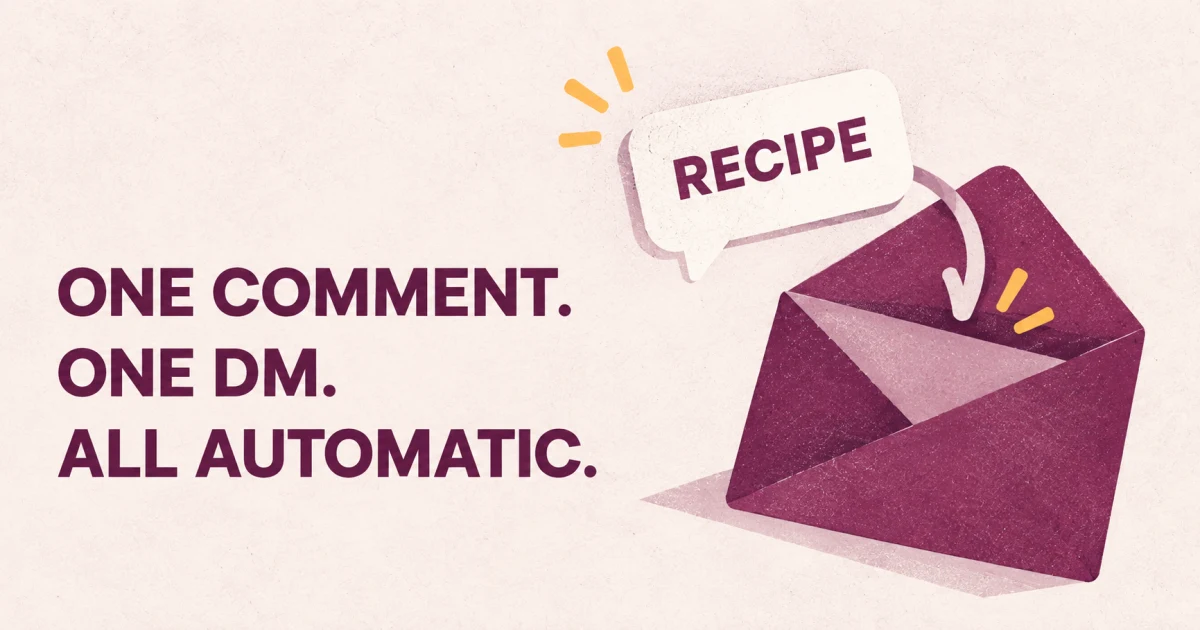
You can automate that reply. When someone comments a keyword on a post you choose, Every Sent starts the DM conversation for you. This guide walks through a recipe example, but the same setup works for a product page, booking link, or free download.
1They comment on your Reel
RECIPE
2You send the opening DM
Want the sourdough recipe? Tap below and I'll send it over.
Send the recipe3They tap the button
Send the recipe
4You send the recipe link
Here's the sourdough recipe, with the ingredient list and baking times.
Open recipe
The extra tap is part of the template we'll use. If all you want is a single DM with a link, there's a shorter option below.
Before you start
- An Instagram professional account you can connect to Every Sent.
- A post or Reel to use for your first test.
- A working link to the resource you're promising.
- A separate Instagram account for testing the recipient's experience.
Sign in to Every Sent and connect the account that owns the post. Keep the comments and messaging permissions enabled during connection. If you're prompted to choose a plan, finish that step before connecting.
This uses Instagram's private replies for professional accounts. Meta's official API reference explains how a comment can start a private reply, including where the message appears and when follow-ups are allowed.
1. Start with the comment-to-DM template
Open Send a link with a reminder and select Use this template. It gives you the opening DM, the tap, and the link message to edit.
Keep your first version small. One post, one keyword, one destination. Leave email collection and extra follow-up steps out until the basic conversation works.
2. Choose your post and keyword
Open the comment trigger. Under Which posts?, choose Posts I choose and select your sourdough Reel. Set the comment keyword to RECIPE.
Start with a specific post rather than any post. Someone asking for a recipe under a bread video shouldn't get the offer from a completely different campaign.
Want the sourdough recipe? Comment RECIPE and I'll send you the link.
In Every Sent, comment keywords match whole words and ignore capitalization. RECIPE, recipe, and ‘recipe please’ can match RECIPE. ‘Recipes’ is a different word, so add it separately if you want that variation too.
3. Write the opening DM and link message
The person just asked for a recipe. You don't need a long introduction or a pitch for everything you sell. Remind them what they're getting, then make the next step obvious.
| Part of the conversation | Example |
|---|---|
| Opening DM | Want the sourdough recipe? Tap below and I'll send it over. |
| Opening button | Send the recipe |
| Link message | Here's the sourdough recipe, with the ingredient list and baking times. |
| Link button | Open recipe |
| Public comment reply | Check your DMs for the recipe. |
Replace the sample URL with your recipe page. Open it without being signed in to your own account. If it's a shared document, check its sharing settings. A perfect DM isn't much help when the link says ‘Request access’.
If you keep Reply publicly too enabled, edit the public reply so it fits your offer. Keep it short. Its job is to point the person toward their inbox.
4. Preview, set live, and test
Walk through the preview first. Check the opening message, tap the button, and read the final reply. Fix any setup issues, then select Set live.
- From a separate account, leave a fresh RECIPE comment on the selected Reel.
- Check that the opening DM arrives. If it's not in the inbox, look in message requests.
- Tap Send the recipe and check that the link message follows.
- Open the link on a phone. Confirm it leads to the promised resource.
- Try an unrelated comment from an unused test account. It shouldn't trigger this keyword rule.
When you edit a live automation, select Publish changes to apply the update. If you've paused it, Resume turns it back on.
If the DM doesn't arrive
| What you see | Check this first |
|---|---|
| No opening DM | Is the automation live, is this the selected post, and does the comment contain your keyword? |
| It worked once, then stopped during testing | Use a fresh account or post. Repeat comments from the same person on the same post may be deduplicated. |
| The opening DM arrived, but the link didn't | Did the recipient tap the opening button? This template waits for that step. |
| The recipient can't find the message | Ask them to check message requests as well as their inbox. |
| The wrong offer arrived | Review other live automations that match that post and keyword. |
| The button opens an error page | Check the destination URL and any document-sharing permissions. |
One important limit: a comment isn't permission to send an endless sequence of DMs. Meta allows one initial private reply to a comment. Follow-ups require a response from the recipient and must stay within the permitted messaging window. See the limitations in Meta's private-reply reference.
Start with one post you can test
Pick a post where people already ask for the same thing. Give them a clear keyword, send what you promised, and read the first few conversations before copying the setup to more posts.
You can start with the comment-to-DM template. Change the recipe to your own offer, then run through the checklist once. That's enough for your first automation.
Frequently asked questions
Can I send the link without asking for a tap?
Yes. Every Sent's Send a link template sends the link in the initial DM. Use it when you only need that one reply. The tap-first version is useful when you want the reader to respond before the next message.
Does the keyword need to be in capital letters?
No. Every Sent ignores capitalization when matching comment keywords. Capitals in your caption just make the keyword easier to spot.
Will setting it live message everyone who already commented?
This setup responds to new comment events. Don't treat it as a way to send a campaign to old commenters. Test with a fresh comment after the automation is live.
What if my post features several products?
Use the Share product links from comments template, which supports up to three product links. Name each button so the reader knows which item it opens.
Send the link they asked for
Start with a comment, ask for a tap, then share your link.
Use this template